Getting Started
Dive into the immersive world of virtual makeup experiences using Neo Script or direct iFrame. This guide covers the three fundamental steps:
Calibration
Objective: Prepare your products for the virtual world.
Before you merge Neo Beauty Studio into your website, you'll want to calibrate your makeup products in our Content Management System (CMS). This means:
- Adding product images
- Naming products
- Writing descriptions
- Undertaking color calibrations
🔗 Access the CMS: portal.holitionbeauty.com
🔗 Need Help? Check our Portal Guide or touch base with our support team.
Integration
Objective: Seamlessly integrate Neo Beauty Studio into your digital platform.
Merging Neo Beauty Studio into your site is a simple. At its core, it's all about attaching a script to a button or link on your page. This script does the magic of spawning a virtual makeup experience via an iFrame pop-up or inline window.
If you prefer to directly create the iFrame element yourself, you can find modal and inline examples in our documentation.
Steps:
- Add a new button on your page. Give it a unique
id. Example:<button id="myBtn">NEO</button>. - Incorporate the code snippet below at the conclusion of your webpage, nested inside the
bodyHTML tags.
<!-- Neo Beauty Studio Activation Script -->
<script src="https://vto.holitionbeauty.com/branch/V2/production/vto/assets/scripts/neo.js"></script>
<script>
  document.getElementById("neoButton").onclick = () => {
    neo({
      client_id: /*<Your CMS client id>*/,
      configuration_id: /*<Your CMS configuration id>*/
    });
  };
</script>
🔗 Parameters: Detailed parameter list is available here.
🔗 More Options: Dive into alternative integration methods here.
We recommend setting the iFrame to at least 600px in height and 400px wide.
Privacy First: Neo Beauty Studio champions user privacy. Images and data are processed in the user's browser and never leave their device. No personal data is ever stored or transmitted.
Customisation
Objective: Make the virtual makeup experience unmistakably yours.
You can customize Neo Beauty Studio's look and feel with CSS. For instance, tweak the iFrame's dimensions, borders, and more using the style attribute.
Additionally, fine-tune the UI in real-time via Beauty by Holition CMS found under Applications->Configurations.
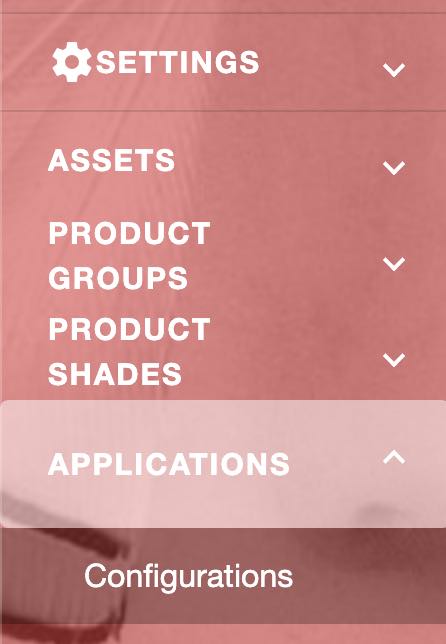
With our intuitive portal UI, you can:
- Modify button icons
- Update text
- Add brand-specific imagery
- Adjust color schemes
- Enable additional features without any coding.
Here is an example of what you can customise on you landing page.
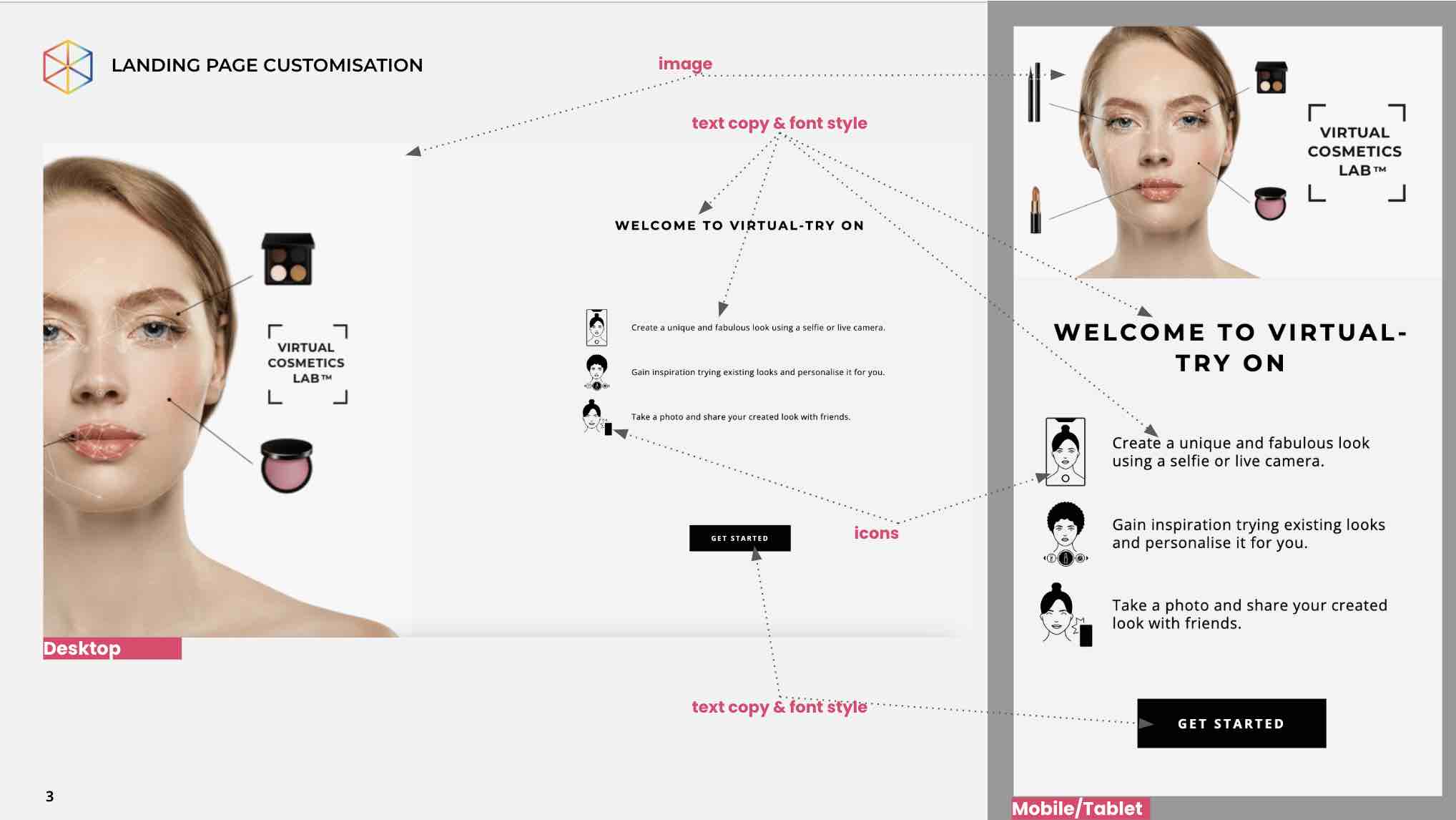
We recommend that you work with our support team to tailor the virtual makeup experience to your brand's specific requirements, ensuring that it is consistent with your overall branding and messaging.